How to merge PDF files into one in the right order, without uploading them
Applications, expense claims and legal packs often need a single PDF. Merging takes a minute when you keep a few things in mind.
Steps
- Select two or more PDFs in the merger below, in the order you want them to appear.
- Select Merge PDFs.
- Download the combined file and check each page.
Get the order right
Name your files with numbers first, such as 01-cover.pdf and 02-statement.pdf, and select them in that order. After merging, scroll through the result to confirm nothing is out of sequence.
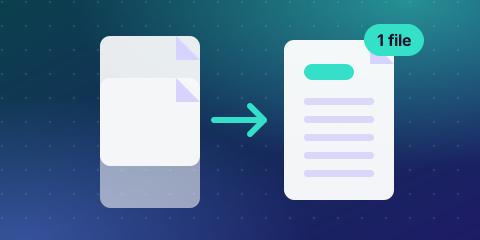 Skip the maths, try your own numbersPDF MergerFree, instant, no sign-up →
Common problems
- Password-protected files: remove the password in the original app first, because protected PDFs usually cannot be combined.
- Mixed page sizes: pages keep their own size, so a letter page may sit next to an A4 page. That is normal.
- Bookmarks and links: internal links or bookmarks from the source files may not carry over, so check them if you need them.
- File size: a merged file is roughly the sum of its parts. If it is over an upload limit, compress it afterwards.
Privacy
The merge runs on your device. Your documents are not uploaded or stored, which is useful for contracts, IDs and financial records.
When you need to merge PDFs
- Job and visa applications that ask for one file with all documents.
- Expense claims with receipts.
- Invoices and statements for an accountant.
- Contracts with signed pages and annexes.
- College or scholarship applications with certificates.
Plan the order first
Decide the order before merging, because moving pages afterwards takes longer. A typical application file has a cover page, the main document, supporting documents in the order the form lists them, then annexes. Name files 01-cover.pdf, 02-id.pdf, 03-certificates.pdf so they sort naturally.
Prepare each file before you merge
- Rotate pages that are sideways so the final file reads smoothly.
- Crop or deskew scans that are tilted.
- Compress large files so the merged file will meet the upload limit.
- Remove passwords. Protected files usually cannot be merged.
- Check page sizes. A4 and Letter pages can be mixed, but some portals print at a fixed size.
Merge in four steps
- Add the PDFs in the order you want.
- Check the file list one more time.
- Select Merge PDFs.
- Open the result and scroll through every page.
What happens to bookmarks, links and forms?
Merging keeps each file's pages but internal links, bookmarks and form fields from the original files may not carry over. If you need a navigable document, add bookmarks afterwards in a PDF editor. For fillable forms, fill and flatten them before merging.
Merge, then compress: the order matters
If the final file must be small, merge first and compress last, or compress each file first and then merge, then check the size. Compressing a merged file turns all pages into images, so merge any text-selectable documents in the form the recipient needs.
Add page numbers and a contents page
For long packs, add page numbers and a short contents page. It helps reviewers find documents and reduces questions. Create the contents page as its own PDF and put it first in the merge order.
Merge multiple files vs. combining images
To combine photos of documents, convert each image to a PDF first, or use a scanning app that exports a single PDF. Then merge as usual.
Privacy and security
- The merge runs in your browser, so documents are not uploaded.
- Check metadata such as author name before sharing.
- Do not merge documents that were not meant to go to the same recipient.
Troubleshooting: common problems and fixes
- Pages are in the wrong order. Rename files with numbers and merge again, or reorder in a PDF editor.
- A file will not merge. It may be password protected or corrupt. Remove protection or re-save it.
- The merged file is too large. Compress each file first or compress the merged file.
- Some pages are sideways. Rotate them in the source file before merging.
- Links and bookmarks vanished. Add them again in a PDF editor after merging.
Is merging private?
The merge runs in your browser, so documents are not uploaded or stored. Check the combined file before you send it, and do not include documents meant for different recipients.
More free Zyphub tools you may need
- PDF Merger: Combine PDFs into one.
- PDF Compressor: Shrink a PDF to a KB or MB limit.
- Exact KB Image Compressor: Compress an image to an exact KB size.
Frequently asked questions
How do I merge PDF files into one?
Select the PDFs in the order you want, choose Merge PDFs and download the combined file. Check the pages afterwards.
Can I change the order of the files?
Add them in the order you want the pages to appear. Rename files with numbers if you prefer to sort them first.
Why can’t I merge a PDF?
It may be password protected or damaged. Remove the password in the original app and try again.
Will the merged PDF be bigger?
Roughly the sum of the individual files. Compress it afterwards if you have a size limit.
Are my documents uploaded to a server?
No. The tool merges them on your device.
Can I merge PDFs for free without watermark?
Yes. The Zyphub merger is free and does not add watermarks.
How many PDFs can I merge?
There is no fixed number, but very large files may be limited by your device memory.